
Computer Software Basics in Phagwara
Learn computer basics, Windows, MS Word, Excel, PowerPoint, file management and internet skills with computer software training at techcadd Phagwara.
Introduction to Computer Software Basics
Computer software is an essential part of modern technology, education, business, and everyday life. From creating documents and managing files to using the internet, preparing spreadsheets, and communicating online, software applications help people complete tasks more efficiently. Understanding basic computer software is an important first step for anyone who wants to develop digital skills and become confident using a computer.
techcadd offers Computer Software Basics training in Phagwara for students, beginners, job seekers, and individuals who want to improve their computer knowledge. The training introduces common software applications, operating system fundamentals, file management, word processing, spreadsheets, presentations, internet usage, and essential digital skills.
Through structured lessons and practical computer exercises, learners can understand how software works, how to use everyday applications, and how to perform common computer-related tasks. The training is suitable for beginners who want to build a strong foundation before progressing to advanced computer courses or specialized software training.
Whether you are a student, a fresh graduate, an office beginner, or someone looking to improve your digital confidence, learning computer software basics can help you prepare for educational, personal, and workplace requirements.
What Are Computer Software Basics?
Computer software refers to the programs and applications that instruct a computer to perform different tasks. Software allows users to create documents, calculate data, browse websites, communicate with others, manage information, and perform many other activities.
Computer software is broadly classified into system software and application software. System software, including operating systems and supporting utilities, helps manage computer hardware and system operations. Application software enables users to perform specific tasks, such as writing documents, preparing spreadsheets, creating presentations, and editing images.
Understanding these software categories helps beginners recognize how computers operate and how different applications can be used to complete everyday tasks.
What You Will Learn in Computer Software Basics Training
1. Introduction to Computers and Software
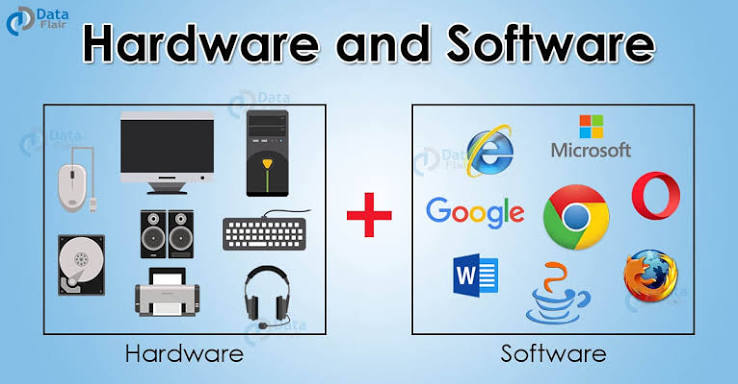
Understand the basic components of a computer and the role of software in its operation. Learn the difference between hardware and software, explore common software categories, and understand how applications help users perform different activities.
2. Operating System Fundamentals
Learn the basic functions of an operating system such as Microsoft Windows. Understand how to start and shut down a computer correctly, use the desktop, navigate the Start menu, open applications, manage windows, and access essential system settings.
3. Desktop and User Interface Basics
Become familiar with common interface elements, including icons, menus, taskbars, windows, dialog boxes, and shortcuts. Learn how to navigate applications, switch between open programs, and use basic keyboard and mouse operations efficiently.
4. File and Folder Management
Learn how to create, rename, copy, move, organize, and delete files and folders. Understand file extensions, common document formats, storage locations, and how to find saved files. Develop good file organization habits to make documents easier to locate and manage.
5. Introduction to Microsoft Word
Learn the fundamentals of word processing using Microsoft Word or a compatible document editor. Understand how to create, edit, format, save, and print documents. Explore font formatting, paragraph alignment, lists, page layouts, tables, and inserting images into documents.
6. Introduction to Microsoft Excel
Understand the basic functions of spreadsheet software. Learn about workbooks, worksheets, rows, columns, and cells. Practise entering data, formatting tables, performing simple calculations, using basic formulas, and creating introductory charts.
7. Introduction to Microsoft PowerPoint
Learn how to create presentations using Microsoft PowerPoint or a compatible presentation application. Understand slide layouts, themes, text formatting, images, shapes, transitions, and basic presentation design. Practise organizing information into clear and readable slides.
8. Internet and Web Browser Basics
Learn how to connect to and use the internet, navigate websites, and search for information using search engines. Become familiar with web browsers, website addresses, browser tabs, bookmarks, downloads, and safe browsing practices.
9. Email and Online Communication
Understand how email works and how to use email services for everyday communication. Learn how to compose, send, receive, reply to, and forward messages. Explore email attachments, professional communication basics, and the importance of protecting account credentials.
10. Installing and Uninstalling Software
Understand the basic process of installing and removing applications on a computer. Learn why software should be obtained from trusted sources, how to review installation options, and why keeping applications updated can improve security and reliability.
11. Basic Computer Settings and Troubleshooting
Learn how to manage common computer settings, including display options, sound, connected devices, and basic personalization. Understand introductory troubleshooting steps for common issues, such as applications becoming unresponsive, storage warnings, and connectivity problems.
12. Antivirus and Computer Security Basics
Understand the importance of protecting computers from malware and other security threats. Learn about antivirus software, system updates, strong passwords, suspicious downloads, phishing attempts, and safe browsing habits. Develop awareness of practices that help protect files and personal information.
13. Data Storage and Backup
Learn about common storage options, including internal drives, USB storage devices, and cloud storage services. Understand how to copy important files, organize backups, and reduce the risk of losing documents due to accidental deletion or device problems.
14. Printing, Scanning, and Document Handling
Understand the basics of connecting and using printers and scanners. Learn how to select print settings, preview documents, save files as PDFs, and manage digital documents for educational, personal, and office use.
15. Keyboard Shortcuts and Productivity Skills
Explore useful keyboard shortcuts for copying, pasting, saving, selecting text, switching applications, and managing windows. Learn how these shortcuts can reduce repetitive actions and help users work more efficiently.
16. Practical Computer Exercises
Apply the concepts learned through practical activities, such as creating a formatted document, preparing a basic spreadsheet, designing a simple presentation, organizing files, sending an email attachment, and downloading a document safely.
These exercises help learners connect theoretical concepts with everyday computer tasks and develop confidence through hands-on practice.
Benefits of Learning Computer Software Basics
Computer software skills provide a foundation for using technology in education, employment, and everyday activities. The key benefits include:
Building confidence in using computers and common software applications.
Learning how to create and manage digital documents.
Developing basic word processing, spreadsheet, and presentation skills.
Improving file organization and document management.
Understanding internet browsing and email communication.
Learning essential computer security and data backup practices.
Developing useful digital skills for office and administrative tasks.
Preparing for more advanced computer training and software courses.
Improving productivity when completing routine computer-based activities.
Introduction to Computer Software Basics
Computer software is an essential part of modern technology, education, business, and everyday life. From creating documents and managing files to using the internet, preparing spreadsheets, and communicating online, software applications help people complete tasks more efficiently. Understanding basic computer software is an important first step for anyone who wants to develop digital skills and become confident using a computer.
techcadd offers Computer Software Basics training in Phagwara for students, beginners, job seekers, and individuals who want to improve their computer knowledge. The training introduces common software applications, operating system fundamentals, file management, word processing, spreadsheets, presentations, internet usage, and essential digital skills.
Through structured lessons and practical computer exercises, learners can understand how software works, how to use everyday applications, and how to perform common computer-related tasks. The training is suitable for beginners who want to build a strong foundation before progressing to advanced computer courses or specialized software training.
Whether you are a student, a fresh graduate, an office beginner, or someone looking to improve your digital confidence, learning computer software basics can help you prepare for educational, personal, and workplace requirements.
What Are Computer Software Basics?
Computer software refers to the programs and applications that instruct a computer to perform different tasks. Software allows users to create documents, calculate data, browse websites, communicate with others, manage information, and perform many other activities.
Computer software is broadly classified into system software and application software. System software, including operating systems and supporting utilities, helps manage computer hardware and system operations. Application software enables users to perform specific tasks, such as writing documents, preparing spreadsheets, creating presentations, and editing images.
Understanding these software categories helps beginners recognize how computers operate and how different applications can be used to complete everyday tasks.
What You Will Learn in Computer Software Basics Training
1. Introduction to Computers and Software
Understand the basic components of a computer and the role of software in its operation. Learn the difference between hardware and software, explore common software categories, and understand how applications help users perform different activities.
2. Operating System Fundamentals
Learn the basic functions of an operating system such as Microsoft Windows. Understand how to start and shut down a computer correctly, use the desktop, navigate the Start menu, open applications, manage windows, and access essential system settings.
3. Desktop and User Interface Basics
Become familiar with common interface elements, including icons, menus, taskbars, windows, dialog boxes, and shortcuts. Learn how to navigate applications, switch between open programs, and use basic keyboard and mouse operations efficiently.
4. File and Folder Management
Learn how to create, rename, copy, move, organize, and delete files and folders. Understand file extensions, common document formats, storage locations, and how to find saved files. Develop good file organization habits to make documents easier to locate and manage.
5. Introduction to Microsoft Word
Learn the fundamentals of word processing using Microsoft Word or a compatible document editor. Understand how to create, edit, format, save, and print documents. Explore font formatting, paragraph alignment, lists, page layouts, tables, and inserting images into documents.
6. Introduction to Microsoft Excel
Understand the basic functions of spreadsheet software. Learn about workbooks, worksheets, rows, columns, and cells. Practise entering data, formatting tables, performing simple calculations, using basic formulas, and creating introductory charts.
7. Introduction to Microsoft PowerPoint
Learn how to create presentations using Microsoft PowerPoint or a compatible presentation application. Understand slide layouts, themes, text formatting, images, shapes, transitions, and basic presentation design. Practise organizing information into clear and readable slides.
8. Internet and Web Browser Basics
Learn how to connect to and use the internet, navigate websites, and search for information using search engines. Become familiar with web browsers, website addresses, browser tabs, bookmarks, downloads, and safe browsing practices.
9. Email and Online Communication
Understand how email works and how to use email services for everyday communication. Learn how to compose, send, receive, reply to, and forward messages. Explore email attachments, professional communication basics, and the importance of protecting account credentials.
10. Installing and Uninstalling Software
Understand the basic process of installing and removing applications on a computer. Learn why software should be obtained from trusted sources, how to review installation options, and why keeping applications updated can improve security and reliability.
11. Basic Computer Settings and Troubleshooting
Learn how to manage common computer settings, including display options, sound, connected devices, and basic personalization. Understand introductory troubleshooting steps for common issues, such as applications becoming unresponsive, storage warnings, and connectivity problems.
12. Antivirus and Computer Security Basics
Understand the importance of protecting computers from malware and other security threats. Learn about antivirus software, system updates, strong passwords, suspicious downloads, phishing attempts, and safe browsing habits. Develop awareness of practices that help protect files and personal information.
13. Data Storage and Backup
Learn about common storage options, including internal drives, USB storage devices, and cloud storage services. Understand how to copy important files, organize backups, and reduce the risk of losing documents due to accidental deletion or device problems.
14. Printing, Scanning, and Document Handling
Understand the basics of connecting and using printers and scanners. Learn how to select print settings, preview documents, save files as PDFs, and manage digital documents for educational, personal, and office use.
15. Keyboard Shortcuts and Productivity Skills
Explore useful keyboard shortcuts for copying, pasting, saving, selecting text, switching applications, and managing windows. Learn how these shortcuts can reduce repetitive actions and help users work more efficiently.
16. Practical Computer Exercises
Apply the concepts learned through practical activities, such as creating a formatted document, preparing a basic spreadsheet, designing a simple presentation, organizing files, sending an email attachment, and downloading a document safely.
These exercises help learners connect theoretical concepts with everyday computer tasks and develop confidence through hands-on practice.
Benefits of Learning Computer Software Basics
Computer software skills provide a foundation for using technology in education, employment, and everyday activities. The key benefits include:
Building confidence in using computers and common software applications.
Learning how to create and manage digital documents.
Developing basic word processing, spreadsheet, and presentation skills.
Improving file organization and document management.
Understanding internet browsing and email communication.
Learning essential computer security and data backup practices.
Developing useful digital skills for office and administrative tasks.
Preparing for more advanced computer training and software courses.
Improving productivity when completing routine computer-based activities.